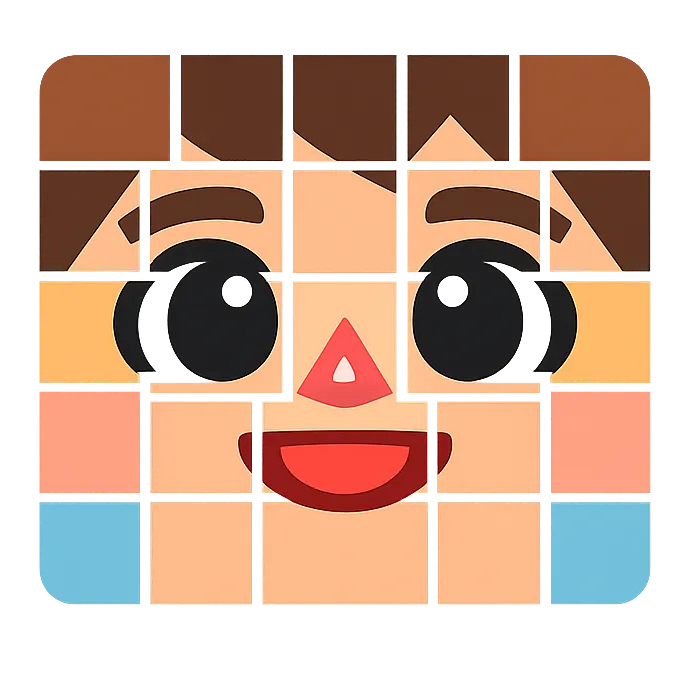
tomodachi-face-paint
Make Tomodachi Life face paint easier with a browser grid tool, layer tips, mirror steps, and character references. No uploads. Image stays on your device.
Introduction
What is tomodachi-face-paint
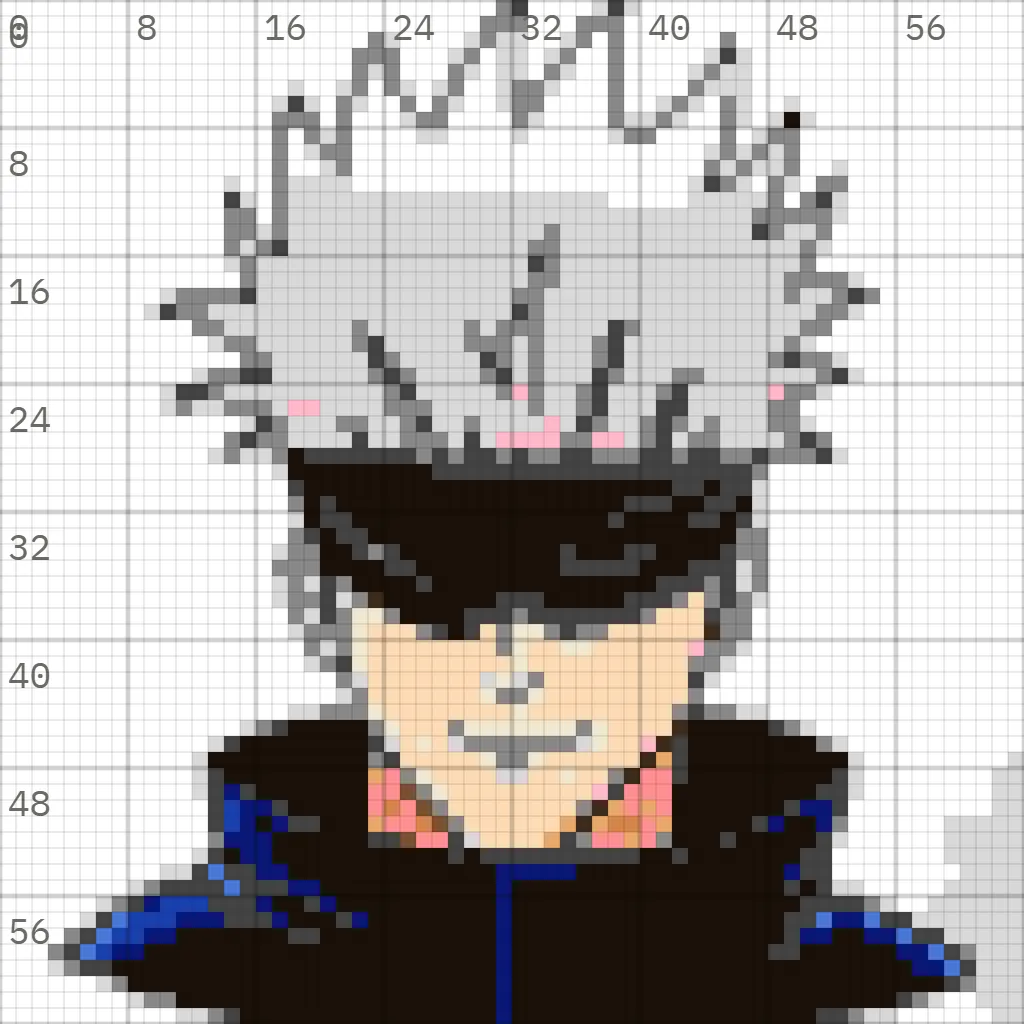
How to Paint Over Hair in Tomodachi Life Face Paint You can paint over some Mii features — but hair works differently. Here's what you can and can't cover, and how to get the cleanest canvas. May 15, 2026 · 5 min read One of the most common questions from new face paint users: "Can I paint over the Mii's hair?" The answer is both yes and no — and understanding exactly where the boundaries are is key to getting the results you want. What you can and can't paint over The face paint canvas is a 256×256 pixel area that covers the Mii's face — from the top of the forehead to the bottom of the chin, and from cheek to cheek. The Mii's preset hairstyle exists outside this canvas. You cannot paint over the hairstyle that extends beyond the face area. What you can do: Paint over the forehead and upper face area where hair might normally sit Use the Draw Over/Under toggle to paint above or below preset facial features (eyes, nose, mouth) Set all Mii features to "None" in Mii Maker to start with a completely blank, featureless face Paint hair-like colours and shapes onto the face canvas to create custom hairstyles that stay within the face boundary How to get the cleanest canvas The most effective approach for serious face paint work: In Mii Maker, set hair style to whatever you like (or None). Set all facial features to None. No eyebrows, no preset eyes, no nose definition, no mouth. This gives you a completely blank face oval. Enter face paint in Pro mode. Use the Draw Under setting for your base skin colour. This ensures it sits behind where preset features would be — important if you later add features back. Paint custom hair on the top layer covering the upper face area (rows 0-10 on a 32×32 grid). What about the Draw Over/Under toggle? The face icon below the canvas preview is the Draw Over/Under toggle. When set to: Draw Under: Your paint appears behind the Mii's preset facial features. Use this for skin tones. Draw Over: Your paint appears on top of the preset facial features. Use this when you want to replace or cover the preset features with custom designs. This is separate from the two paint layers (top/bottom, toggled with ZR on a selection). The three systems together — two layers × Draw Over/Under — give you a surprising amount of control. Common scenarios "I want my character to have a completely different hairstyle." Set the Mii Maker hair to None, then paint the entire hair design onto the face canvas using the top layer. "I want to add highlights to the existing hair." You can paint highlights on the face canvas, but they won't extend onto the preset hairstyle outside the face oval. The effect works best for bangs and forehead-level details. "I want to paint over bangs." Bangs are the easiest hair detail to fake because they sit over the forehead, inside the face paint area. Use an 8px brush for the main bang shape, then switch to 4px for jagged tips, shadows, or separate strands. If the preset hairstyle still sticks out above the face, choose a shorter Mii hairstyle and let the painted bangs carry the look. "I want to draw facial hair or a beard." Facial hair is fully inside the face canvas, so it works much better than preset head hair. For beards, put the skin base on the bottom layer and draw the beard on the top layer. For mustaches, use the 4px brush around rows 17-21 on a 32x32 grid, then preview expressions so the mouth does not distort the design. "I want hair highlights on top of custom hair." Paint the hair base first, then add highlights on the top layer using a slightly lighter palette colour. Keep highlights chunky: one-cell-wide 8px highlights usually read better in-game than tiny 4px scratches. The same approach works for Miku-style twin tails, Gojo hair, and Pomni's hat/hair boundary. "Paint is covering features I want to keep." Switch from Draw Over to Draw Under mode. If that doesn't help, you may have painted on the wrong layer — select the offending element and press ZR to toggle its layer. Troubleshooting Draw Over, Draw Under, and layers If hair paint is covering the wrong thing, check these three controls in order: Draw Over/Under: this controls whether paint appears above preset Mii features such as eyes, nose, and mouth. Top/bottom layer: this controls whether one paint element sits above another paint element. Preset hairstyle: this sits outside the face canvas and cannot be covered by face paint. For full custom characters, start with facial features set to None, draw the skin on the bottom layer, then draw custom hair, bangs, facial hair, outlines, and highlights on the top layer. Use the layers guide if elements keep disappearing behind the base colour, and use the mirror guide for symmetrical bangs, beards, cheek marks, or hair panels. Character guides that rely heavily on this technique: Hatsune Miku, Pomni, and Satoru Gojo.
More Products
Explore category
Seedance 2.5
Seedance 2.5 is ByteDance’s upgraded AI video model rendering seamless 30s native 4K footage. It supports 50 references of text, images, audio, videos and 3D models with consistent characters and lighting. It enables lossless partial editing without full re-render and exclusive industrial 3D white-model preview. Browser-native, it fits ads, e-commerce and industrial simulation.

MatchCV
MatchCV helps job seekers land more interviews by tailoring their resume to each job. Paste a job description and MatchCV's AI reads it, finds the keywords and skills you're missing, and rewrites your resume to pass ATS filters — all in about 10 seconds. Export to PDF or DOCX. No subscription required: start free and pay only for the credits you use.

Seedance 2.0 Mini
Create cinematic AI videos from text and images without complex timelines or high costs.
Grow faster
Get backlinks for your SaaS
Submit your product and track every backlink submission in one workspace.
FAQ
ProjectCan I claim this project?Open
How do backlinks get tracked?Open
Is this listing verified?Open
How do I update my listing?Open
Trusted signals
ProofManual
Verification checks
72h
Average response time
900+
Projects tracked